














Android App Development: Stack, Process, Cost, And Best Practices

KEY TAKEAWAYS:
- Android app development starts with one critical workflow. Define its success criteria, failure states, device needs, backend dependencies, and ownership before estimating the screen list.
- Use the current native default when Android is the main platform. Kotlin, Android Studio, the Android SDK, Jetpack, and Compose suit most new native apps; Java supports mature codebases, while C++ through the NDK fits focused native components.
- Choose the delivery model from product constraints. Native fits deep Android APIs, specialized form factors, and platform-specific performance; cross-platform fits products that can share most behavior across Android and iOS.
- Test the riskiest behavior before expanding scope. Run technical proofs for authentication, payments, offline sync, device APIs, adaptive layouts, and other constraints that could change the architecture.
- Make release ownership explicit. Prepare the signed artifact, Play Console information, testing track, rollout thresholds, monitoring, rollback action, and post-launch maintenance plan.
Android app development turns a user workflow into a reliable product for Android-powered devices. The work includes product planning, adaptive UX, Android code, backend services, testing, Google Play release, and maintenance.
The best starting point is the riskiest workflow, not the largest feature list. This guide explains the modern Android stack, compares native and cross-platform choices, maps the delivery process, and connects technical decisions to cost and production readiness. For broader context, see our guide to mobile app development.
What Is Android App Development?
Android app development creates applications for devices powered by the Android operating system. The scope includes smartphones, tablets, foldables, watches, TVs, cars, laptops, XR devices, and other compatible form factors.
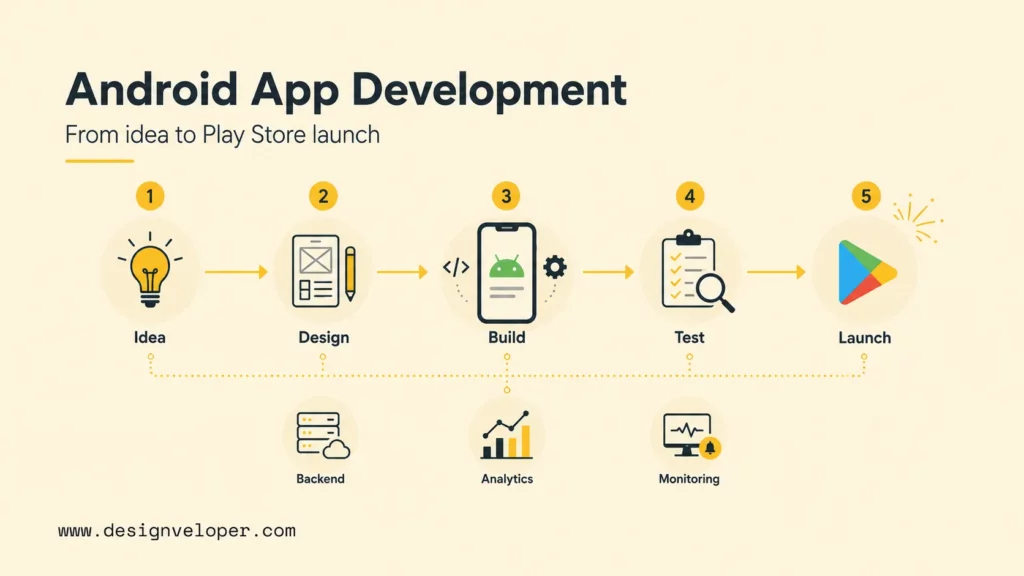
Android software development covers the full product lifecycle. The team defines the user problem, designs the experience, builds the client and supporting services, tests the product, publishes it, and maintains it. The visible interface is only one layer. A production app may also need authentication, business rules, databases, backend APIs, push notifications, payments, maps, analytics, administrative tools, and support workflows.
For example, a booking app must let users search availability, select a time, pay securely, receive confirmation, and change or cancel a booking. The Android client presents the experience, but the backend must protect availability data and keep each transaction consistent. A field-service app adds different constraints: technicians may need to capture photos, use location data, work without a connection, and synchronize changes later. The feature list is not enough to describe the development effort; the workflow and its failure cases matter too.
Android development commonly uses Android Studio, the official integrated development environment, together with the Android SDK, build tools, emulator, platform APIs, and libraries. Teams then choose UI, architecture, data, testing, release, and observability tools based on the product rather than treating one stack as universal.
What Android App Development Produces
- Product and UX decisions: user journeys, screen behavior, permissions, error states, offline rules, and accessibility requirements.
- Android client software: screens, navigation, local storage, device APIs, background work, notifications, and platform-specific behavior.
- Supporting services: APIs, databases, identity, payments, files, messaging, analytics, and administrative workflows where the product needs them.
- Delivery and ownership assets: automated tests, release configuration, store content, monitoring, incident procedures, and a maintenance plan.
This is why an Android project should be scoped around user outcomes and system boundaries instead of screen count alone. Ten static screens may be straightforward. One screen that handles payment, identity, document upload, or offline synchronization can require more design, engineering, security, and testing work.
Android App Development Examples By Product Type
The same Android tools support very different products. The example below shows how the main workflow changes the client, backend, testing, and release plan.
| Product example | Core Android workflow | Main engineering risk | Useful proof |
|---|---|---|---|
| Ecommerce app | Browse, search, cart, checkout, order tracking, and notifications | Payment state, inventory accuracy, slow networks, and repeated requests | A test order from product selection to refund or cancellation |
| Field-service app | Receive a job, work offline, capture photos or signatures, and sync later | Offline conflicts, location permissions, battery use, and large uploads | A disconnect-and-reconnect test with no lost work |
| Healthcare or booking app | Search availability, book, remind, consult, and manage sensitive records | Privacy, access control, time-zone rules, and dependable confirmations | A role-based test that checks who can view or change each record |
| Document app | Upload, view, annotate, sign, share, and recover document changes | File security, background work, version conflicts, and large payloads | A permission and interrupted-upload test on a real device |
| AI assistant app | Ask, retrieve context, review a suggestion, and complete an approved action | Latency, privacy, model failure, usage cost, and human handoff | A fixed evaluation set with fallback and approval rules |
Designveloper’s public work also shows why the product context matters. A marketplace platform project raises different scale and catalog questions from a healthcare and telemedicine platform project. These references are useful for framing discovery questions, not as proof that every Android app needs the same architecture or feature set.
Explore more:
- 7 Stages of Mobile App Development Process
- 10 Best Mobile App Development Tools
- Mobile App Design Process: How Does It Change?
Android App Development Stack, Tools, And Languages
The stack choice affects how quickly a team can build, how much platform behavior it can control, and how easy the app will be to maintain. Start by separating core Android tools from optional services, then choose languages and UI technologies around the product’s device needs, team skills, and long-term ownership.
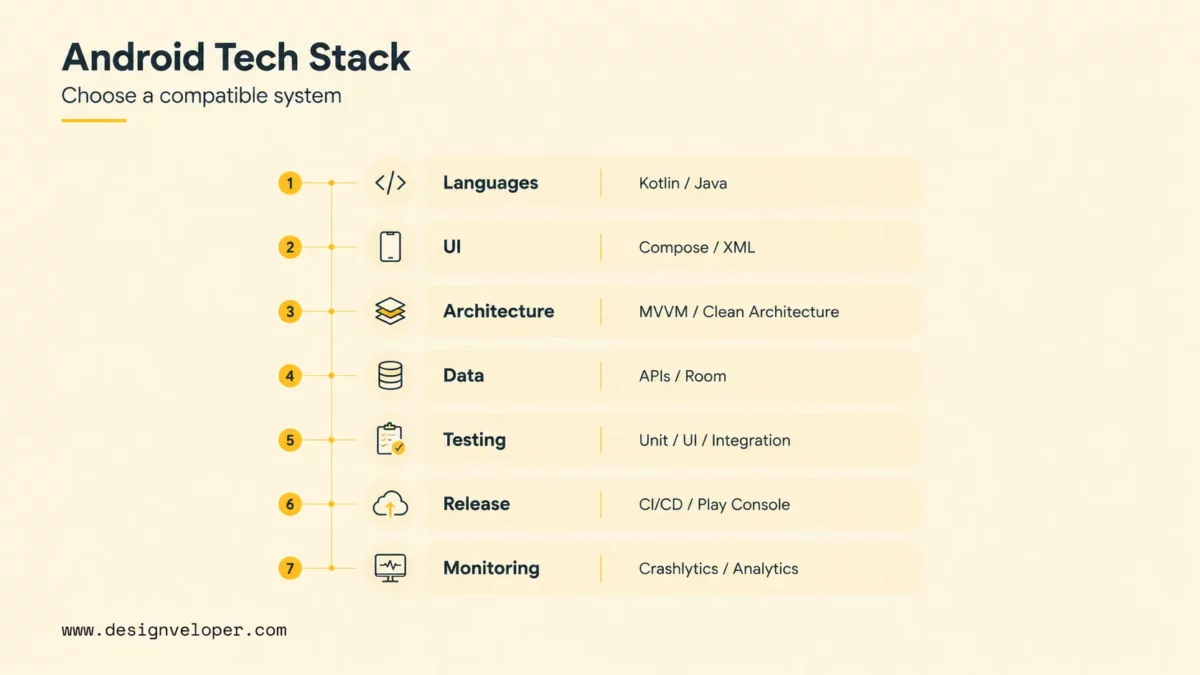
Core Android Development Tools
The Android ecosystem has a core development toolkit and a wider set of optional services. Keeping that distinction clear helps teams avoid choosing tools because they appear in a popular stack diagram. The right question is what each tool must enable, how it will be tested, and who will maintain it.
| Layer | Common choices | What to decide |
|---|---|---|
| IDE and build | Android Studio, Android SDK, Gradle, emulator, and version control | Supported SDK versions, reproducible builds, signing ownership, and CI checks |
| Language | Kotlin for most new native work; Java for existing applications; C++ through the Android NDK for selected native components | Team expertise, library compatibility, performance constraints, and migration cost |
| UI | Jetpack Compose for declarative UI or XML views for existing patterns and codebases | Accessibility, adaptive layouts, design-system reuse, and the amount of legacy UI to support |
| Architecture | Jetpack libraries, ViewModel, repository boundaries, dependency injection, and modular code | State ownership, testability, offline behavior, and how features can change without breaking unrelated flows |
| Services and operations | REST or GraphQL APIs, databases, identity, analytics, crash reporting, notifications, and cloud services | Data ownership, privacy, failure handling, service cost, and operational responsibility |
Languages And UI For Android Apps
Kotlin is a practical default for most new native Android applications. It works well with modern Android libraries, coroutines, and Compose. Google’s Kotlin for Android guidance is a useful starting point.
Java remains useful for mature applications, existing teams, and libraries that depend on it. Android apps are not normally written entirely in C. C++ is a focused option through the Android Native Development Kit. Teams use it for performance-sensitive code, existing C or C++ libraries, games, media processing, and hardware-adjacent work.
For the UI layer, Jetpack Compose provides a modern declarative approach. XML-based views still appear in established products and can coexist with Compose during incremental migration. A project should choose the approach that the team can test and maintain, not assume that replacing every existing screen is automatically the best use of time.
A Practical First Android Build
A small technical spike can answer more useful questions than a long framework debate. Android Studio is the development workspace. Gradle assembles source code and resources, while the Android emulator or a physical device exercises the result.
Gradle files also define dependencies, build variants, signing inputs, and repeatable CI tasks. The team should therefore include them in the project plan early. A first Android app build can follow this compact path:
- Install Android Studio and the SDK components required by the project.
- Create a Kotlin project from a Compose template and run the starter screen in an emulator or on a physical device.
- Add one complete user flow, such as sign-in, search, form submission, or local data entry.
- Test loading, empty, error, permission, and offline states rather than checking only the successful path.
- Run the flow on a second screen size and record what must change before the team builds more features.
The Android Basics with Compose course and Google’s first Android app codelab are useful starting points for learning the current native workflow. For a product team, the same exercise becomes a decision tool: it can expose device, API, performance, or data risks before a larger budget is committed.
Further reading:
- Which Programming Language Is Best for App Development?
- How To Build An Android App: From MVP To Google Play
- iOS App Development Languages: Swift, Flutter, React Native
Native Vs Cross-Platform Android App Development
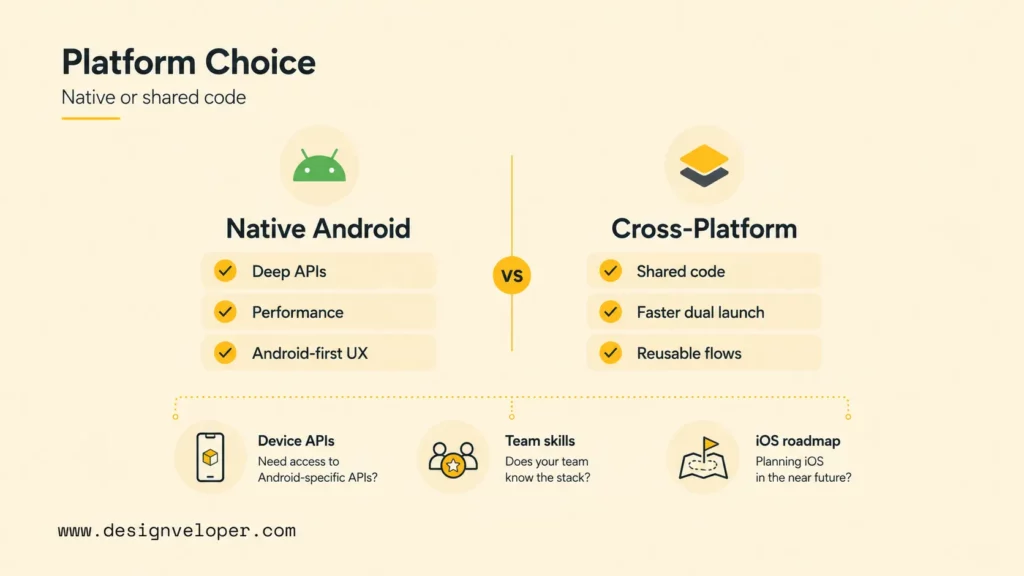
Native Android development gives the team direct access to Android APIs and platform behavior. Cross-platform development shares more code across Android and iOS. The choice is a product and ownership decision. It is not a simple race between development speeds.
| Approach | Strong fit | Main advantage | Main tradeoff |
|---|---|---|---|
| Native Android with Kotlin | Android-first products, deep device APIs, complex background work, demanding performance, or platform-specific UX | Direct platform access and predictable Android behavior | A separate iOS implementation usually needs additional skills and delivery work |
| Flutter or React Native | Android and iOS products with mostly shared flows, components, and business logic | Shared code can simplify coordinated mobile delivery | Plugins, upgrades, debugging, and native escape hatches still require mobile expertise |
| Kotlin Multiplatform | Teams that want to share selected Kotlin business logic while keeping native UI or platform code | A middle path between full duplication and one shared UI | Project structure and iOS integration need deliberate technical ownership |
| Web or hybrid experience | Content-heavy products, simple forms, or internal workflows already suited to the web | One web delivery path can reduce mobile-specific work | Device APIs, offline behavior, native interaction quality, and performance may be more limited |
Choose native when the app depends on Bluetooth, advanced camera or media processing, background location, widgets, wearables, on-device machine learning, or strict Android interaction patterns. Cross-platform can fit a marketplace, booking service, membership product, or operational tool when both mobile platforms share the same core workflow.
Flutter vs Kotlin is not a direct language comparison. Kotlin is the primary language for native Android development, while Flutter is a cross-platform UI and application framework that typically uses Dart. Choose Kotlin when Android behavior, platform APIs, or native performance are central. Choose Flutter when a shared Android and iOS codebase is more valuable and the product’s native requirements can be supported reliably by the framework and its plugins.
Android’s Kotlin Multiplatform guidance describes sharing business logic while retaining platform-specific code where it adds value. Before committing, build the riskiest flow in the shortlisted approaches. Test the difficult device API, the heaviest screen, offline synchronization, authentication, and the release pipeline. Evidence from a small spike is more useful than a framework choice based only on headline code-sharing claims.
Explore more:
- How To Reduce Cross-Platform App Development Costs: 5 Practical Steps
- iOS and Android App Development: A Practical Decision Guide
- Financial App Development: Features, Security, And Cost
Android App Development Process
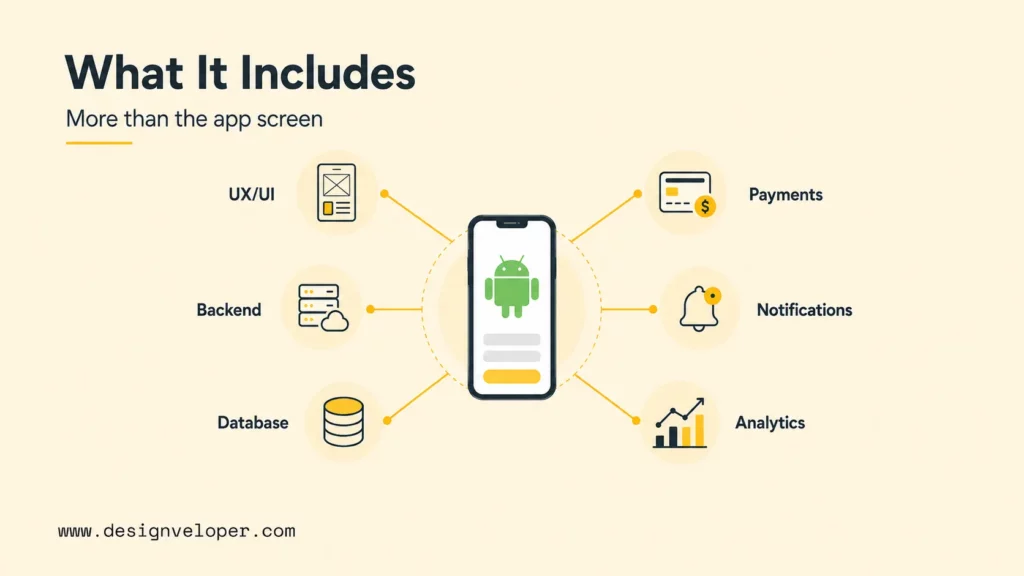
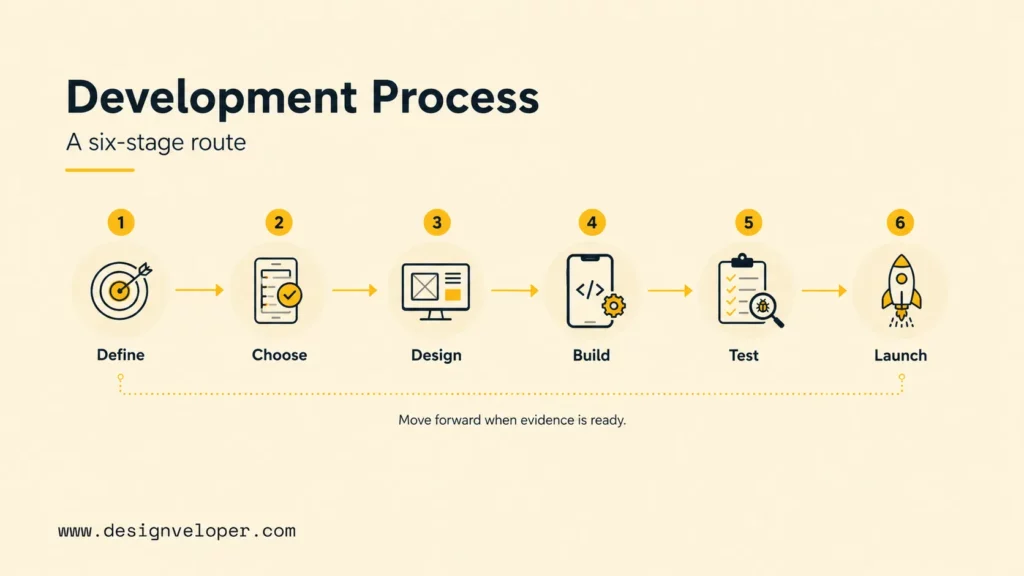
The Android app development lifecycle reduces uncertainty in stages. It does not treat design, engineering, QA, and release as separate handoffs. Each stage should produce evidence that the next decision is safe enough to make.
1. Define The Product And Core Workflow
Start with one primary user, one valuable job, and a small set of acceptance criteria. Describe what should happen when the user has a weak connection or denies a permission. Also define the response to invalid data, repeated actions, and app restarts. These cases reveal architecture and cost earlier than a long feature list.
2. Choose The Platform And Technical Boundaries
Decide whether the product needs native Android, cross-platform delivery, or a combination of approaches. Record the required Android versions, form factors, device APIs, backend systems, data sensitivity, offline expectations, and iOS roadmap. If one integration is uncertain, use a technical spike before finalizing the architecture.
3. Design Adaptive UX And UI
Design the complete journey, not just the successful screen. Include loading, empty, error, permission, authentication, offline, and confirmation states. Use responsive constraints and reusable components so the interface can adapt to compact and expanded windows. The Android guidance for different display sizes is a useful reminder that an app should respond to available space rather than assume one fixed phone shape.
4. Build The Client, Backend, And Integrations
Implement the Android client alongside the services it depends on. Define API contracts, validation rules, authentication, authorization, data ownership, retries, idempotency, and failure messages before the client and backend drift apart. Add third-party integrations such as payments, maps, messaging, files, or AI only with clear timeouts, fallbacks, privacy boundaries, and ownership.
5. Test The Riskiest Behaviors
Testing should cover more than whether a screen opens. Use unit tests for business rules, integration tests for data and APIs, UI tests for important journeys, and manual checks on representative devices and Android versions. Test process recreation, rotation or resizing where relevant, slow networks, interrupted requests, permission changes, large data sets, and battery-sensitive behavior.
6. Release, Monitor, And Iterate
Prepare the signed release, store listing, privacy disclosures, testing tracks, rollout controls, support process, and rollback plan. After launch, review crashes, performance, conversion or task completion, support issues, and user feedback. A small staged release can reveal real device and network behavior before the app reaches the full audience.
Example Project: Offline Field-Service App
Consider an app that lets a technician receive a job, navigate to a site, capture photos, record parts, collect a signature, and submit the visit. The delivery plan should prove five things before the team adds more screens:
- Assignment: the user can open the current job and see which data is safe to cache locally.
- Offline work: the core form and photo capture still work when the network disappears.
- Sync: queued changes retry safely after reconnection without duplicating the visit.
- Permissions: location, camera, and file access are requested at the point of need and have useful fallback states.
- Review: a supervisor can see sync status, rejected data, and the audit trail before the job is marked complete.
This small project exposes architecture, device, security, and support risks early. The same method works for ecommerce checkout, appointment booking, document signing, or an AI-assisted workflow: prove the riskiest user journey before expanding the feature list.
Further reading:
- Software Development Life Cycle (SDLC): Guide for Business
- Custom Software Development: How It Can Drive Your Business Growth
- How To Build An App For Your Business In 10 Steps?
Android App Architecture And Integrations
An Android app can look complete in a demo and still become difficult to change as data, permissions, and third-party services grow. The decisions below give each responsibility a clear boundary.
Clear boundaries make failures easier to recover from, and they help the team test the parts that matter most to users and the business.
Choose A Maintainable App Architecture
Architecture is the set of boundaries that keeps an Android application understandable as features and teams grow. A common starting point separates UI state, domain rules, and data access.
The exact pattern may vary, but important decisions should be explicit. Define who owns state, which layer can call an API, how data is cached, and how the app recovers from failure.
Design Data, API, And Offline Boundaries
| Concern | Useful design decision | Question to test |
|---|---|---|
| UI state | Keep screen state observable and separate from reusable business rules | Can the screen recover after process recreation or a temporary failure? |
| Data and offline use | Define local cache, synchronization, conflict rules, and stale-data behavior | What happens when two devices change the same record or the network disappears? |
| API and backend | Document contracts, validation, retries, authorization, pagination, and error states | Can a repeated request create duplicate data or expose another user’s record? |
| Third-party services | Give payments, maps, files, notifications, and AI calls clear boundaries and fallbacks | Does the core task remain understandable when the external service is slow or unavailable? |
Add Integrations Without Expanding Risk
An app that uses an API needs the same care as a web application or a GraphQL-backed product. The mobile client should not be the only place where business rules live. Keep authorization and sensitive validation on trusted services. The client should also remain useful when the network is slow or unavailable.
Product context also changes architecture. An Android ecommerce app may need catalog search, payments, order state, and customer notifications. A document product may need secure file transfer, viewing, editing, and collaboration. Designveloper’s public document collaboration platform project illustrates why a product’s document workflow matters when teams plan the experience and supporting systems. The example should inform questions to ask, not be treated as proof of an identical implementation.
For an app with AI features, add evaluation cases, privacy rules, latency targets, usage-cost monitoring, and a fallback when the model response is unavailable or wrong. An AI assistant, recommendation, or document feature should have a defined role in the workflow: advisory, reviewed by a person, or automatically applied. That choice affects the architecture and test plan.
Explore more:
- 10 Must-Have AI Apps And How They Work
- eCommerce App Development Guide: Features, Process
- What Is A Chatbot? Real Uses, How It Works, And What It Can Do
Testing, Security, And Device Compatibility
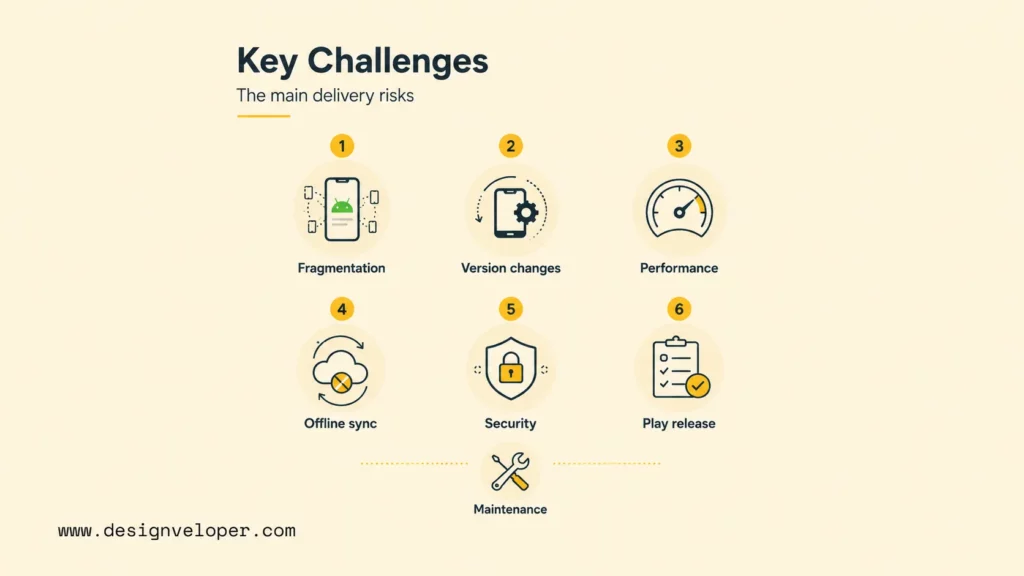
Compatibility and security are not final checks added after the screens are finished. They shape the device matrix, permission flow, local data rules, and behavior under weak networks.
They also affect how the app responds to changing Android versions. The team should test these constraints while it designs the core workflow.
Support Devices With A Risk-Based Matrix
Android devices differ in screen size, hardware, operating-system version, manufacturer behavior, network quality, and user settings. Testing every possible combination is unrealistic, so teams need a risk-based device matrix. Select representative compact and expanded screens, supported Android versions, lower-powered hardware, important input methods, and the devices used by the target audience.
Test User Journeys And App States
The official Android testing guidance supports a layered approach. Combine automated checks with manual exploratory testing and real-device validation for the flows where failure would damage trust, revenue, safety, or data integrity.
Protect Data, Performance, And Release Quality
- Compatibility: test adaptive layouts, portrait and landscape behavior where relevant, font scaling, keyboards, foldable or expanded windows, permissions, and process recreation.
- Performance: measure startup, scrolling, rendering, network behavior, battery-sensitive work, and large or slow data sets. Google Play’s Android vitals can help teams monitor important quality signals after release.
- Security: review authentication, authorization, secrets, local storage, exported components, dependencies, logs, transport protection, and the data collected by analytics or third-party SDKs. Use the Android security recommendations as a baseline, then apply requirements specific to the product and jurisdiction.
- Release compliance: track target API requirements, data declarations, store assets, signing, permissions, and testing tracks. Check the current Google Play target API requirements before release because platform policies change.
Security and compatibility are design concerns as much as engineering tasks. A permission request that appears at the wrong moment can reduce trust. A layout that hides a confirmation action on a larger screen can create support work. A crash that occurs only on an older supported device can affect the users least able to work around it.
Android App Development Cost And Timeline
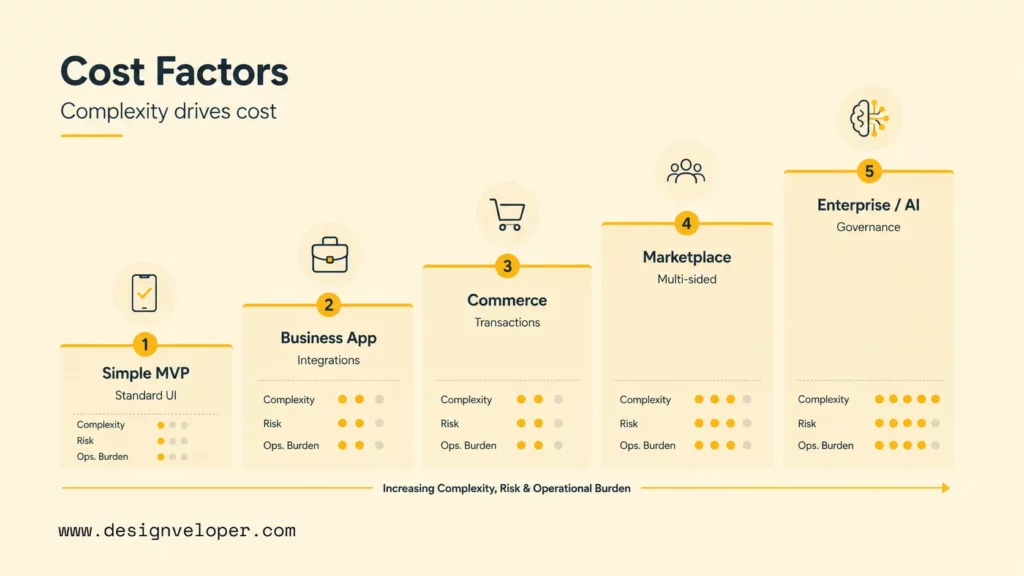
Cost and timeline are easier to plan when the app is described as workflows, technical risks, and delivery stages. Screen count alone is not enough.
The sections below show what changes the estimate. They also explain how to make assumptions visible and how an MVP boundary affects budget and launch timing.
What Drives Android App Development Cost?
There is no useful universal price for Android app development without scope assumptions. The estimate changes with user roles, workflow complexity, backend services, integrations, data risk, design depth, device coverage, release requirements, and post-launch support. Screen count alone is a weak estimator.
| Scope area | What it may include | Why the estimate changes |
|---|---|---|
| Discovery and UX | Research, user flows, wireframes, content, visual system, prototypes, and usability checks | Unclear users, complex roles, and unvalidated workflows increase uncertainty before coding |
| Android client | Screens, navigation, local data, device APIs, background work, accessibility, and adaptive UI | Native integrations, offline behavior, animation, hardware, and form-factor coverage add complexity |
| Backend and integrations | APIs, identity, roles, database, payments, files, notifications, analytics, or AI services | Data integrity, security, vendor limits, failure handling, and operational load need additional work |
| Quality and release | Automation, device matrix, performance checks, security review, signing, store preparation, and rollout | Higher risk, more devices, regulated data, and staged releases expand validation effort |
| Post-launch ownership | Crash monitoring, Android updates, dependency upgrades, support, analytics, and feature iteration | A product that needs continuous operations costs more than a one-time prototype |
How To Estimate Android App Development Work
A practical estimate should separate discovery, design, Android engineering, backend work, integrations, QA, release, and maintenance. For each area, record the assumptions, owner, dependencies, and uncertainty. A technical proof can reduce uncertainty around payments, legacy APIs, offline synchronization, on-device processing, or a difficult device capability before the team approves the full build.
What Affects Timeline And MVP Scope?
Timeline follows the same logic. A focused client with a stable backend can move through delivery differently from a multi-role marketplace or regulated product.
Map the dependencies between discovery, design, technical proof, implementation, QA, store review, and rollout. Do not promise a date from screen count alone.
When a project needs both a faster first release and a safe path to scale, define the MVP boundary explicitly. Keep the first version narrow, but do not hide essential work such as authentication, data migration, analytics, security review, device coverage, and release preparation outside the plan.
As a broad planning reference, Designveloper’s current app development cost guide places a lean MVP around $10,000. A typical custom mobile app may cost $50,000-$150,000, while complex products can reach $400,000 or more. These are general mobile-app bands, not Android-specific quotes. Use the Designveloper estimation page only after defining the scope. A planning range is more credible when it says what is included and excluded.
Releasing And Maintaining Android Software
Development is not complete when the first build runs on an emulator. A production Android app must pass release checks, reach users through a controlled rollout, and remain useful as Android versions, dependencies, backend services, and user expectations change.
Android SDK, APK, And AAB Explained
These terms describe different parts of delivery. The Android SDK is the collection of platform APIs, build tools, libraries, emulator components, and testing support used to create Android software. An APK is an installable packaged application file. An Android App Bundle (AAB) is the publishing format commonly uploaded to Google Play, which can then generate optimized APKs for compatible devices. The SDK helps build and validate the app; APK and AAB are release artifacts with different roles.
Prepare For Google Play Release
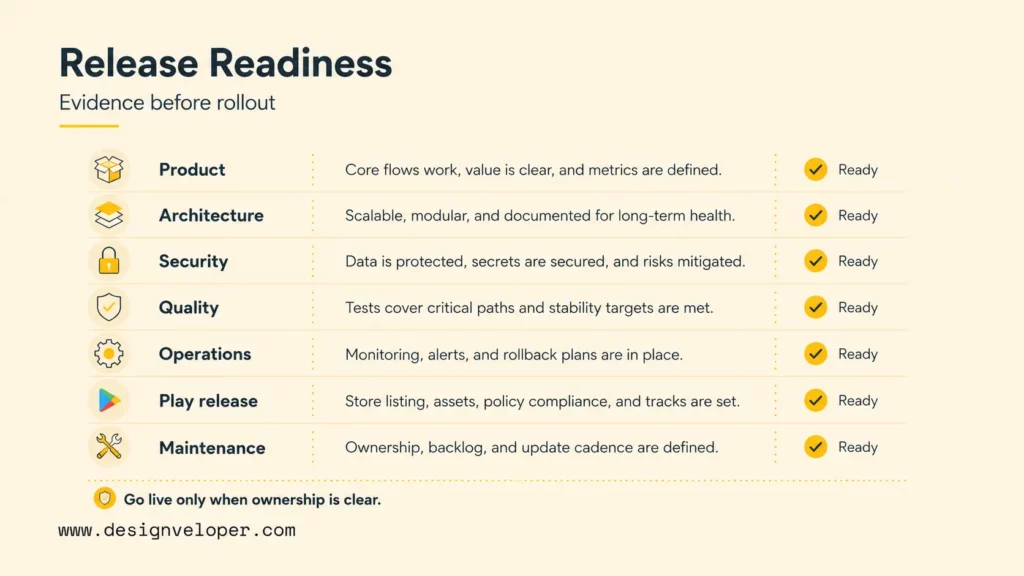
A production release is a controlled transition from a tested candidate to real users. Before publishing, the team should know what success means, what could fail, who receives alerts, and how to reduce exposure if a serious issue appears.
- Build and sign the release artifact, then confirm the package name, version code, version name, and signing ownership.
- Complete the Play Console listing, privacy policy, data-safety declarations, content rating, screenshots, and target API checks.
- Run the release through an internal or closed testing track on representative devices before wider distribution.
- Define the rollout percentage, crash and performance thresholds, alert owner, and rollback action before using staged release.
| Readiness area | Evidence before launch | Stop condition |
|---|---|---|
| Product | Core journey, acceptance criteria, analytics events, support route, and accountable owner | The team cannot define successful use or explain who handles a failure |
| Architecture and data | API ownership, offline rules, recovery behavior, migrations, and backup or rollback plan | A restart, duplicate request, or weak connection can lose or corrupt important work |
| Security and privacy | Permissions, identity, authorization, storage, dependencies, logs, disclosures, and secrets reviewed | Sensitive data or privileged actions are exposed without a tested control |
| Quality and release | Automated checks, representative devices, signed artifact, store content, testing track, and rollout plan | A core flow fails on a supported configuration or the release depends on unknown credentials |
| Operations | Crash reporting, performance monitoring, alerts, incident owner, support process, and update cadence | The team would learn about a major failure only from public reviews |
Operate And Improve After Launch
Maintenance includes Android version changes, target API updates, dependency upgrades, security fixes, backend capacity, store policy work, crash analysis, and product iteration. Budgeting for maintenance before launch is safer than treating it as an emergency task after the first serious issue.
Designveloper’s mobile app development services connect mobile product work with UX, backend systems, testing, release, and ongoing support. A delivery partner should do more than build screens. It should also help define the boundaries between the Android client and the services that make the product work.
For teams adding AI to a mobile workflow, AI development services may be relevant when the project needs integration and production controls around model behavior. Define the AI feature’s role, evaluation cases, privacy boundary, fallback, and human review before treating it as a finished capability.
FAQs About Android App Development
The right Android development decision depends on the product’s users, required device behavior, delivery scope, and long-term ownership. These questions address common follow-up decisions that are easy to miss in a high-level overview.
What Language Is Best For Android App Development?
Kotlin is the strongest default for most new native Android applications. It works well with current Android libraries, Compose, and asynchronous programming patterns. Java remains a practical choice for mature applications and existing Java codebases.
C++ through the Android NDK is a focused option. Teams use it for native libraries, games, media processing, and performance-sensitive components. It should not be the default language for the whole app.
Is Android Written In C Or C++?
Android applications are not normally written entirely in C or C++. Most new native apps use Kotlin, while Java remains common in existing codebases. C++ through the Android NDK supports selected native libraries, games, media pipelines, and performance-sensitive components. The choice depends on the component’s need for native performance or an existing C/C++ dependency.
Can I Build My Own Android App?
Yes. A beginner can install Android Studio, follow a Kotlin and Compose tutorial, run an app in the emulator, and build a small local workflow. A production app is a larger responsibility because it may require backend services, account security, payments, privacy disclosures, device testing, store release work, monitoring, and maintenance. A small prototype is a useful way to learn or validate an idea, but it should not be mistaken for a production plan.
What Is The Difference Between The Android SDK And An APK?
The Android SDK is the collection of platform APIs, tools, libraries, emulator components, and build support used to create and test Android software. An APK is a packaged Android application file that a compatible device can install. For Google Play distribution, teams commonly upload an Android App Bundle, after which Google Play can generate optimized APKs for compatible devices. The SDK helps produce and validate the app; the APK is one packaged output.
How Difficult Is Android App Development?
A small app with one local workflow can be approachable for a learner. Difficulty rises when the product needs accounts, payments, real-time data, offline synchronization, background work, several device types, strict security, or a dependable backend. The most effective way to reduce uncertainty is to build and test the riskiest workflow early instead of estimating difficulty from the number of screens.
How Do Android Apps Support Different Devices And Screen Sizes?
Android apps use adaptive layouts, responsive constraints, density-independent dimensions, reusable components, resource handling, and testing across representative configurations. The interface should adapt to the available window, not rely only on labels such as phone or tablet. Teams should check compact and expanded windows, orientation where relevant, foldables, font scaling, keyboard input, accessibility, and process recreation.
Conclusion: Plan Android App Development Around The Riskiest Workflow
Android app development succeeds when product decisions, mobile engineering, backend systems, quality checks, release operations, and maintenance are planned as one system. Start with a narrow, valuable workflow, and choose the platform approach from evidence.
Make the risky behavior testable, and assign ownership before launch. This path gives an Android app room to grow without turning the first release into an avoidable rewrite.
If your team is planning an Android product, contact Designveloper with the core workflow, target devices, integrations, data constraints, and release goal. Those inputs are more useful for scoping than a screen count alone.
Also published on

Share post on










Related Articles


Android App Development: Stack, Process, Cost, And Best Practices
Android App Development: Stack, Process, Cost, And Best Practices Published September 17, 2026
Flutter vs React Native: Which Fits Your Mobile App?
Flutter vs React Native: Which Fits Your Mobile App? Published September 17, 2026
SaaS Application Development: Process, Cost, And Architecture
SaaS Application Development: Process, Cost, And Architecture Published September 16, 2026